Creating Artboards
From a New Rive File
When you create a new Rive file, you’ll be prompted to create an artboard. Choose a size from one of the presets, or enter a custom width and height. You can resize the artboard at any time.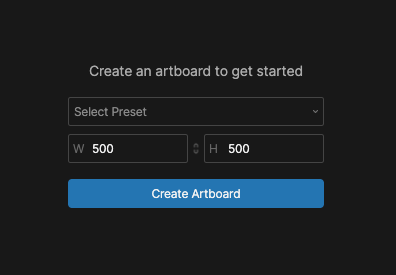
Artboard dimensions are measured in units rather than pixels. For example, if a 500-unit-wide artboard is displayed at 1000 pixels wide, each unit represents 2 pixels. For simplicity, you can often treat these units like pixels while working in the editor.
Creating Additional Artboards
A Rive file can contain multiple artboards.1
Select the Artboard Tool or press A.
2
Click and drag anywhere on the stage to create an artboard.
Copying Artboards
Select an artboard and press Cmd/Ctrl + D to duplicate the artboard and all of its contents.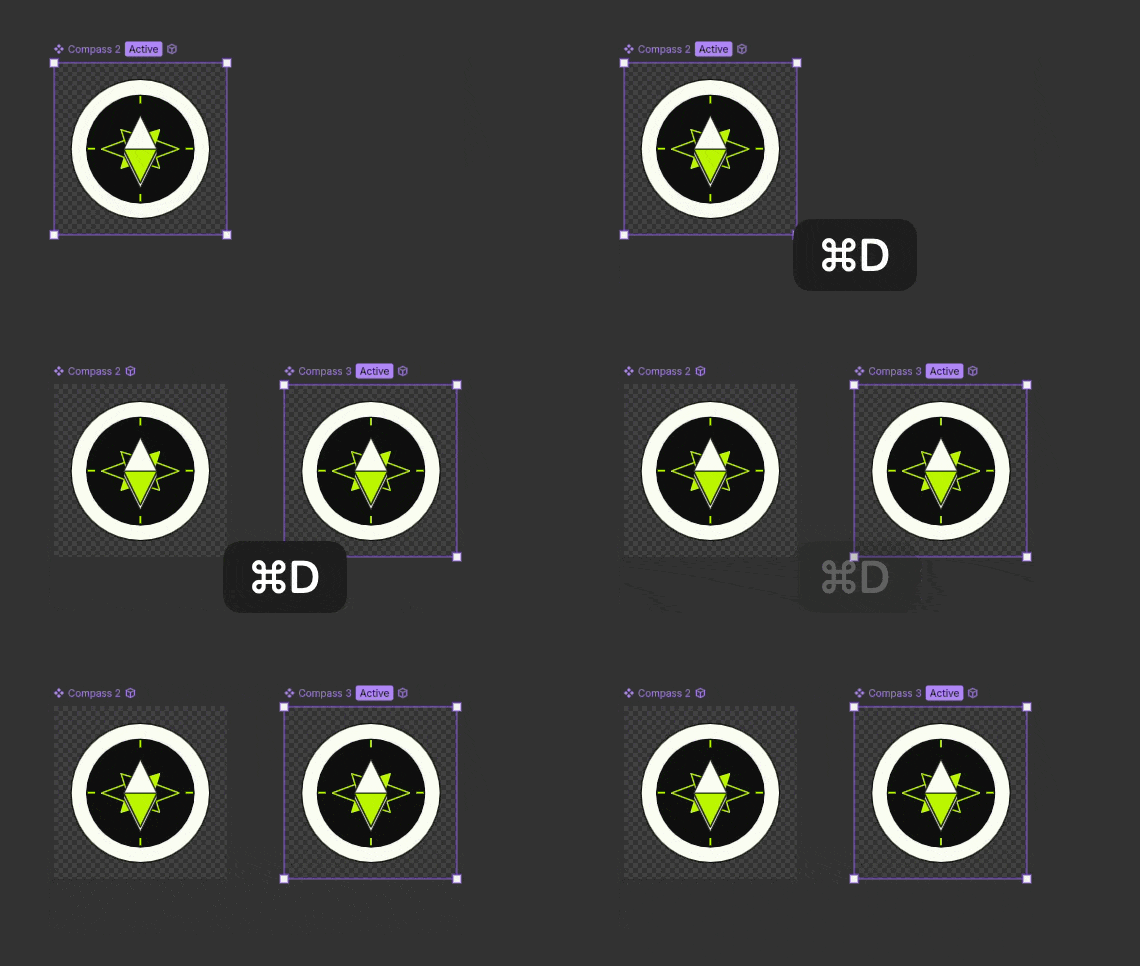
Managing Artboards
Each artboard has its own hierarchy, animations, state machines, and properties.Hierarchy
Each artboard has its own hierarchy containing the objects that belong to that artboard. Select an artboard to view its hierarchy in the Hierarchy panel. See Hierarchy for more information about organizing and navigating objects.Animations & State Machines
Animations and state machines belong to individual artboards. Select an artboard to view and edit its animations and state machines. See Animations and State Machines to learn more.Artboard Properties
Select an artboard to view and edit its properties in the Inspector.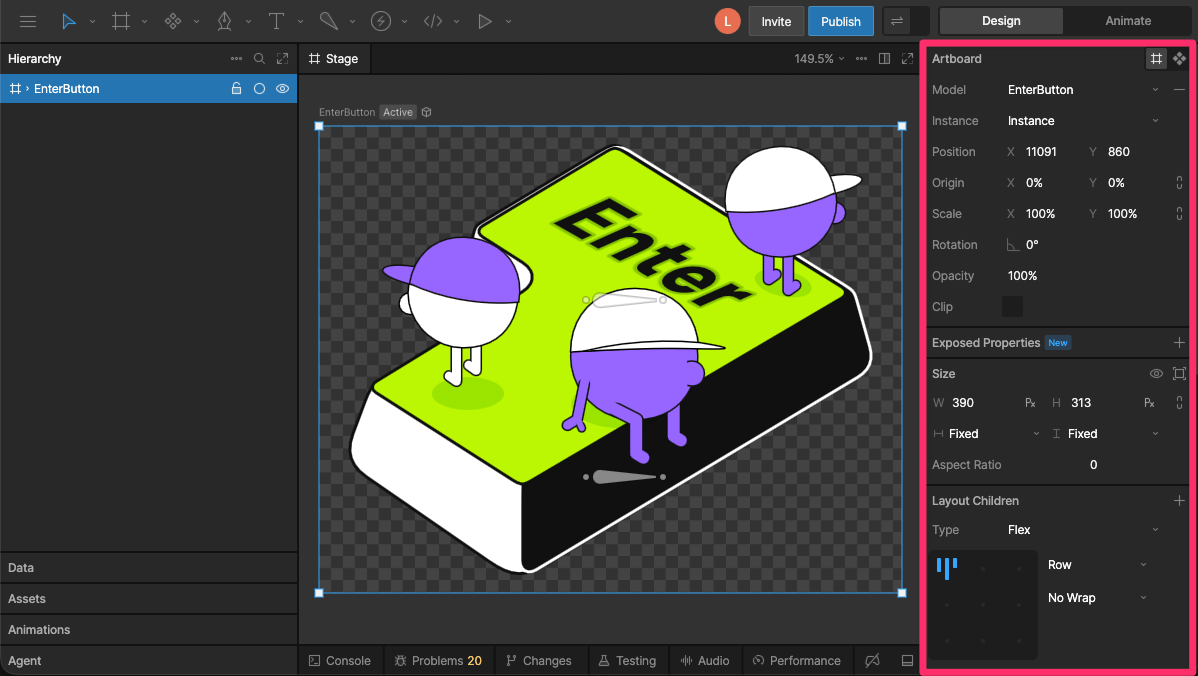
- Transform - Set the artboard’s position, size, scale, rotation, and origin.
- Layout - Control how the artboard responds when its size changes. See Layout.
- Fill - Set the artboard’s background color.
- Model - Choose the view model associated with the artboard.
- Clip - Control whether content outside the artboard’s bounds is visible.
Clip
Enabling the Clip toggle hides content that extends beyond the bounds of the artboard. In most cases, you don’t need to enable Clip on a top-level artboard because content outside its bounds isn’t rendered at runtime.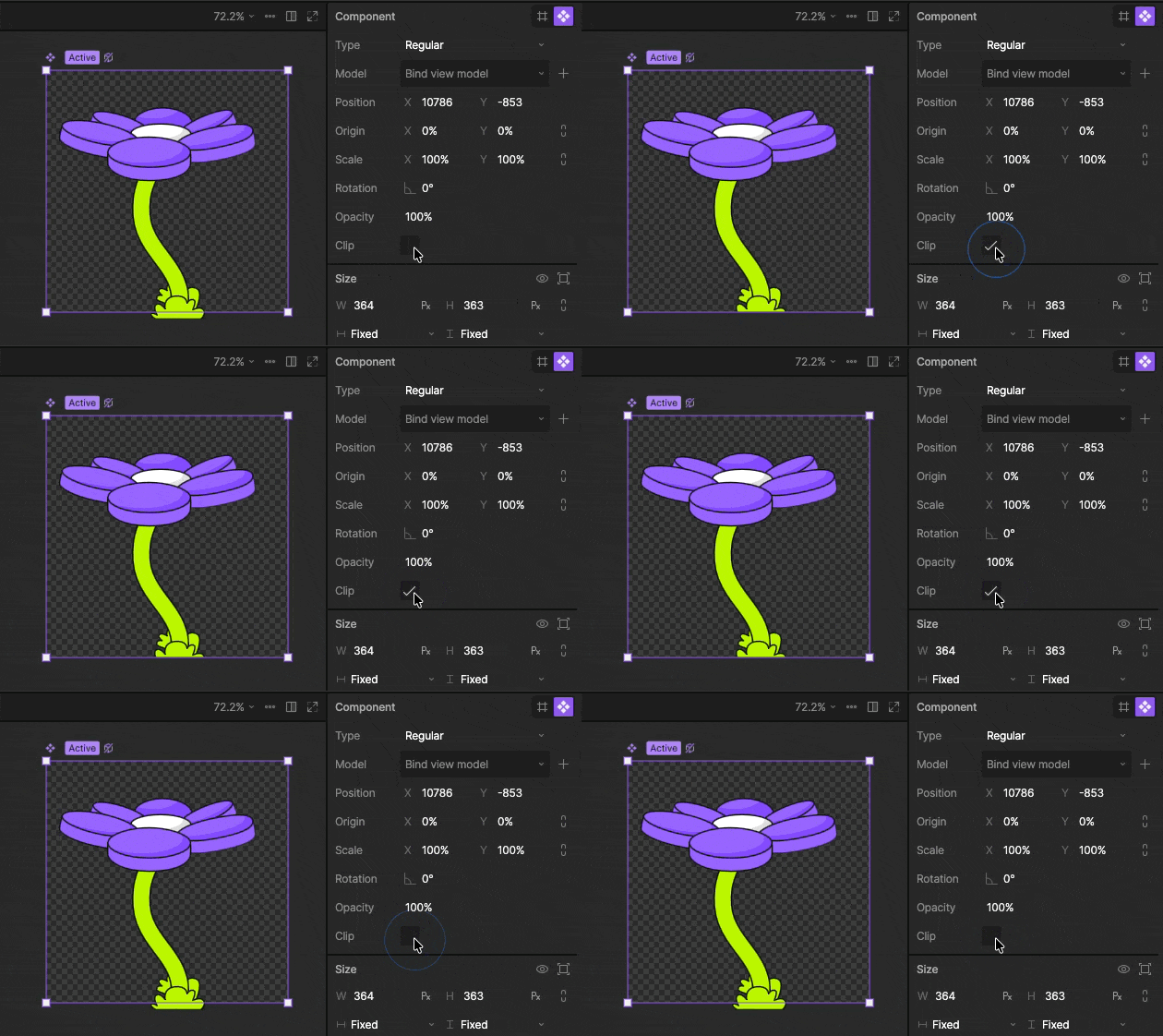
Default Artboard & State Machine
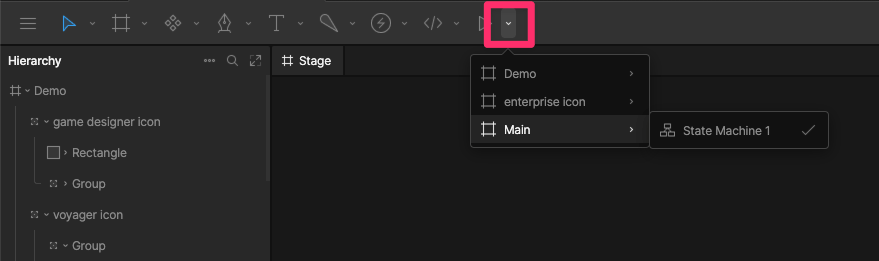
The default artboard and state machine are used at runtime when an artboard or state machine isn’t explicitly specified. To change the default, use the dropdown to select the artboard and state machine you want to use.